CSE 350: Advanced Data Structures and Indexes (Spring 2026)
Project 0: Repository setup and project sign-up
Release date: 2026-01-22 15:30:00-05
Due date: 2026-01-23 23:59:59-05 (no grace period allowed for project 0)
Last updated: 1/23/2026
0. Project overview
In this course, you will work independently in programming assignments -- building a concurrency-safe LSM tree index in C++17. There are 4 subprojects throughout the semester. At the end of the semester, you should have a usable LSM tree index. These cover most of the topics we will discuss in the lectures. All projects are due at 23:59:59 Eastern Time (before 3/8/2026: EST/UTC-04, and on or after 3/8/2026, EDT/UTC-05). The last day for submission of all projects is May 6.
You will need to set up a private repository through Github classroom. See below for more details.
You will use this repository throughout the semester. You may make
submissions through the submit command, available
only in your dev container on
minsky.cse.buffalo.edu (see below). We will pull
your code from your repository and verify whether it remains
private and only accessible to us (ub-cse562),
and yourself.
Note that you may not make any of your project code publicly available during or after this semester, or make them available priviately to any current or future students who may take the course. For example, you may not fork the repository or clone this outside the dev container you're assigned to. If discovered, it will be treated as an AI violation. Please take some time to review the academic integrity policy on the course homepage for more details.
In this project, your task is to set up your development docker
container on minsky.cse.buffalo.edu, where you may
write, debug, test and submit your code; set up your private
repository and initial code base; and sign up for the project.
This project is only worth 0.1 point out of the final grade,
but you will not be able to make submissions for later project
unless you make a valid submission to project 0.
If you missed the first lecture and recitation on 1/22/2026, you may still follow all the steps except that you will not be able to make a submission for project 0.
(IT Support) If you run into any IT issues, such as unable to log into dev container, running out of space, etc., please message instroctor through Piazza. Please do not directly reach out CSE/SENS/UB IT as they will not be able to assist with the course-specific environment on the servers.
1. Setting up and managing your dev docker container
In this section, please follow the steps below to set up your
dev docker container on minsky.cse.buffalo.edu.
You will have SSH access to your personal container and be able
to manage your dev container in case you need to restart it.
Note: While other students' containers are isolated from yours, you are still sharing the same physical resource with the rest of the class. To prevent hogging the server, you are limited to up to 8 GB of memory, and you only have access to CPU 0 (the 40 even numbered cores/hyperthreads). When you are building code, we recommmend setting the job parallelism to no more than 8 to avoid having the container killed due to OOM/making the server overloaded.
Step 1: Connecting to UBVPN. If you are connecting from off campus, you have to connect to UB VPN in order to connect to the student servers. See here for how to install and setup UB VPN. Once you're connected, you may continue to step 2.
You may ignore this step if you are connected to eduroam or UB_Secure.
Step 2: Install SSH Client locally. If you already know how to install and use SSH, you may skip below. Otherwise, please the following are the commnoly use SSH clients in typical systems.
For Linux/Mac OS users, openssh client is usually
pre-installed. You should be able to run ssh from
a terminal. If not, please install the openssh package
available through the package manager of your system.
For Windows 10/11 users, you may enable
the OpenSSH client feature in Settings -> Apps ->
Optional Features. Once it is enabled, you may use
ssh command from PowerShell. If that does not work
for you, or you're using an older Windows release, you may also use
PuTTY, a standalone
SSH client for Windows.
Step 3: Each student should set up a development docker
container on the students server
minsky.cse.buffalo.edu, which will be used for
developing, debugging and submitting your code throughout the
semetser. To set up and manage the container, you need to do so
through a centrally authenticated CSE student server
cerf.cse.buffalo.edu. If you know how to and/or
have already accessed any of the centrally authenticated CSE
student server before, you may skip below. Otherwise, you
may follow the following steps.
First, you need a local SSH key pair and
upload it so that you may access cerf without a
password in the future. You may have different key pairs if you
have multiple devices. To allow yourself to access the server
from all your devices, you'll need to follow these steps on each device.
Before you continue, please check
whether you already have an SSH key and/or installed it on any
of the CSE student servers. To do so:
- Check 1: check if there are key files (e.g.,
id_rsa.pub,id_ecdsa.puborid_ed25519.pub) at the default location (for Windows: open file explorer and enter%USERPROFILE%\.sshin the address box; for Linux/Mac: enterls -al ~/.sshin terminal). If the default.sshdirectory does not exist or there is no such key file, you probably have never generated a key before, in which case please continue to Step 3a. Otherwise, continue with Check 2 below. -
Check 2: in a terminal, run
ssh <your-ubit-name>@minsky.cse.buffalo.edu(replace<your-ubit-name>with your UBITName, i.e., the user name of your UBMail address). If you can log into the server without having to enter a password, you probably have already installed your public key on the student servers. In that case, please continue to Step 7. Otherwise, please continue to Step 3b.
(Hint: enterexitorCtrl-D(on Windows/Linux) to exit the remote server if you have successfully logged in.)
Step 3a: Generating local SSH key. In your terminal, enter
ssh-keygen. Follow the prompt and press enter for
a few times to create an SSH key at the default location with
no passphrase. Never share your private key file
(id_rsa) with anyone. If you have a different type
of key (e.g., id_ecdsa, id_ed25519),
replace id_rsa in the commands below with the
actual private key file name.
Step 3b: Uploading SSH key to cerf.
For Linux/Mac users, please open a terminal. Then copy and
paste the following line, with
<your-user-name> replaced with your actual
UBITName (i.e., the user name of your UBMail address).
Enter your UBIT password when prompted.
ssh-copy-id <your-ubit-name>@cerf.cse.buffalo.edu
For Windows users, please open PowerShell. Then copy and paste
the following line, with <your-user-name>
replaced with your actual UBITName (i.e., the user name of your
UBMail address). Enter your UBIT password when prompted.
cat "${env:USERPROFILE}\.ssh\id_rsa.pub" | ssh <your-ubit-name>@cerf.cse.buffalo.edu "[ ! -d ~/.ssh ] && mkdir -m 700 ~/.ssh; [ ! -e ~/.ssh/authorized_keys ] && touch ~/.ssh/authorized_keys && chmod 600 ~/.ssh/authorized_keys; cat - | tr -d '\r' >> ~/.ssh/authorized_keys"
At this point, you should be able to login using ssh <your-ubit-name>@cerf.cse.buffalo.edu without password.
Step 4: Configure search PATH on cerf.
Once you're logged into cerf, you should be using
tcsh by default. You'll need to perform the following
one-time setup to add the CSE562 dev container management executables
to your PATH environment variable (yes, CSE350 reuses CSE562 environments):
- Open
~/.cshrcusing your favoriate text editor (e.g.,nano ~/.cshrc). - At the end of the file, add the following line:
setenv PATH /shared/projects/CSE562/bin:${PATH} - Save and exit the text editor. If you're using
nano, enterCtrl + X, and then follow the screen prompt. - Logout from cerf (type
exitor hitCtrl + D). - SSH into
cerfagain. Enterwhich status_dev_container. This should print the following line:/shared/projects/CSE562/bin/status_dev_container. If not, please redo the previous steps.

Step 5: Generating SSH key on cerf.
You typically need to log into your dev container from
cerf using another SSH key. In this step, you will
need to verify whether you have a valid SSH key pair on
cerf. To do so, look for
~/.ssh/id_rsa and ~/.ssh/id_rsa.pub.
If it does not exist (or you have another type of key other
than RSA), you must generate a new one using ssh-keygen
-t rsa.
Step 6: Start, stop or obtain status of your dev container.
To start your dev container, please enter the following:
start_dev_container
If your container is started successfully, you should see the following message as showed below:
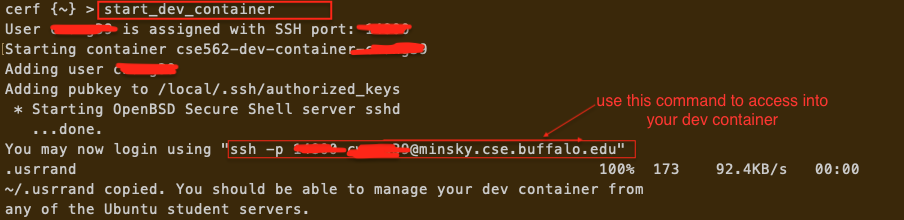
You can now log into your dev container using the command
printed on the screen. The argument after -p is
the forwarded SSH port number on minsky.
The dev container is based on Ubuntu 22.04, with all required
dependencies pre-installed. You may start working on your
project directly without setup or install any environments
required by course projects.
Again, each student should only access your own container throughout the semester. If you access or interfere a container that does not belong to you, it may be considered as violation of our academic integrity policy.
You may sometimes lose connection to, or slow down the
container with a few runoff jobs throughout the semetser. To
check whether your container is still up and running, you may enter the following
on cerf:
status_dev_container
If your container is up and running, you should see the following:

You may also use this command if you forget the SSH port number, which is listed under PORTS.
If there is no container running , you should see:

Please note, you should not develop, build, or test your code on cerf.cse.buffalo.edu. Instead, to develop, build, test,
or submit your code, please log into your dev container on minsky.cse.buffalo.edu.
To stop a container, e.g., when it is running but not responding, and you'd like to restart it, you may enter
the following on cerf:
stop_dev_container
If you're unable to restart or stop your dev container, please reach out to instructor for help through a Piazza private message.
Caution: While you are not required to shut down
your dev container, it is your responsibility to make sure it
is not hogging the server. If the server becomes too
overloaded, we may first identify and ask the owner of a dev
container that is hogging the server to kill some processes in
it, or restart the container. Then we may forcefully stop your
container if the system is unresponsive and we do not hear from
you in a reasonable amount of time. In addition, the storage
devices on minsky are not backed up, and data loss
could happen in extremely rare cases. You should not leave
unsaved/uncommited changes in your dev container for too long
(certainly not overnight).
Troubleshooting steps if you cannot start container successfully: If nothing below works, please reach out to instructor through a private message on Piazza.
- Possible Problem 1: You don't have a id_rsa.pub on
cerf. In your terminal:cd ~.ssh/thenlsif you do not see a file calledid_rsa.pub, then you may not be able to start the dev container successfully. Please refer to Step 5. - Possible Problem 2: There's a warning message
after starting the dev container:
Permission
                              denied. Failed to fetch ~./usrrand
. In this case, you may not be able to obtain status or stop the dev container. In this case, you need to copy the~/.usrrandin your dev container tocerfusing the following command:scp -P <Your-Container-Port> <YOUR-UBIT>@minsky.cse.buffalo.edu:~/usrrand ~/.usrrand - Possible Problem 3: When you SSH into the dev container, it has a
permission deniederror. Typically, that means the private key in~/.ssh/id_rsadoes not exist or cannot be match the public key installed in your dev container. This could happen if you are trying to SSH into the dev container from a non-CSE centrally authenticated student server (i.e.,cerfor other CSE servers). You may follow the steps below to allow yourself to SSH into the dev container from another system (e.g., your personal laptop):- Step 1: Generate SSH key in the system where you'd like to SSH into the dev container from, if it does not exist (see Step 3).
- Step 2: Copy the entire line in
~/.ssh/id_rsa.pub(Linux/Mac), or${env:USERPROFILE}\.ssh\id_rsa.pub(Windows). - Step 3: First log into
cerf, from which log into your dev container. - Step 4: Enter
echo "<paste your pubkey here>" >> authorized_keys
IMPORTANT: replace<paste your pubkey here>with the copied line from the system you'd like to SSH from; do not omit the double quotes (""); and make sure to append to the file (>>) - Step 5: Test whether you can access minsky directly from the other system.
-
If you are unable to log into your dev container from
cerf, please restart your dev container to allow it to re-install the public key.
2. Repository and codebase setup
In this section, your task is to set up a working repository and your build environment.
Prerequisites: You should get familiar with basic bash shell
and git operations, command line text editors (vim, emacs or
nano), gdb debugger, basic Github workflow as well as C++11, 14 and 17 if not
already. Optionally, you might also want to learn either screen
or tmux to allow a job to run detached in case of connection
loss.
Here're a few good resources. (You may go over them as needed. No need to go over all of them at once).
POSIX shell,
git,
Github,
C++11, 14, 17:
ISOCPP FAQ on C++11 and C++14,
and
cppreference wiki on C++11,
C++14, and
C++17.
Note: you should perform the following while logged into
your dev container on minsky, not
cerf!
Step 1:
Log into your personal Github account and accept the Github
classroom assignment invitation through this
link.
Once you accept, Github will create a private repository managed
by UB-ADBLAB orgnization and you will receive a
separate
invitation in your email to the repository. Before you accept it,
Github classroom page will show errors as you do not have
access to the repository yet.
Please log into your email associated
with Github to accept the invitation.
You no longer need to invite any account to make submissions. Both the instructor and an auto grading account will have full access to your repository.
Once you can access the repository in Github, you should note down the SSH link for cloing the code.
It should be in the following form: git@github.com:UB-ADBLAB/cse350-sp26-lsm-<your-github-username>.git.
Step 2: Make sure
that you have generated an SSH key pair in the dev
container on minsky (not the one on your
local machine or cerf) and uploaded the public key
to Github. You should check if you have
~/.ssh/id_rsa in a terminal in container. If
not, run ssh-keygen to generate the keys. Then
cat ~/.ssh/id_rsa.pub to print the public key.
Finally, copy it and upload it in Github -> SSH and GPG
keys -> New SSH Key.
Step 3: Import and set up initial codebase by entering
the following in your dev container (skip the comment lines that start with #):
    # extract the tarball
    tar xf /ro-data/labs/lab3500.tar.xz
    # rename the extracted directory to the same as your repository
    mv lab3500 <repo-name>
    # change into the directory
    cd <repo-name>
    # setting up the git repo
    ./setup_repo.sh git@github.com:UB-ADBLAB/cse350-sp26-lsm-<your-github-username>
If everything goes well, the script will print Repo setup
is finished. Here are a few post-setup steps to
follow:... Please follow the post-setup steps.
A common reason the repo setup fails to complete is you have not set your name and email for Git. The post-setup steps will let you know in that case and provide hints for how to continue.
Step 4: Build the code.
We use cmake as the build system. You do not need
to modify any of the CMakeLists.txt in most cases,
but you should generally be aware of how cmake
works.
Here's how to create a Debug build (unoptimized build
where you can debug using gdb) in the
build.Debug directory:
    cd <dir-to-local-repository>
    cmake -B build.Debug . # don't omit the dot at the end or cmake will report errors
    cd build.Debug
    make -j 8        # -j 8 enables parallel build with up to 8 processes
                     # Please be considerate for all CSE students who are
                     # sharing these servers and refrain from using -j with
                     # too many processes.
And here's how to create a Release build (optimized build that
does not have the debugging symbols to allow you use
gdb) in the build.Release directory.
When you're finished with developing and debugging your code,
you should run it in release build again to make sure it still
works, and runs within the time and memory limits.
    cd <dir-to-local-repository>
    cmake -B build.Release -DCMAKE_BUILD_TYPE=Release . # don't omit the dot at the end or cmake will report errors
    cd build.Release
    make -j 8        # -j 8 enables parallel build with up to 8 processes
                     # Please be considerate for all CSE students who are
                     # sharing these servers and refrain from using -j with
                     # too many processes.
Step 5: Testing your code with ctest.
(Note: the tests are implemented using the
GoogleTest
framework. Going through the GoogleTest Primer section in its
user's guide will help you understand the test cases and allow
you to write your own test cases in later projects).
We recommand you build and run the code through command line:
The following assumes that you have changed the working directory
into either build.Debug or build.Release.
- Run all tests:
ctest(add-Vto see verbose outputs). - Find all test cases without running them:
ctest -N - Run a specific test case (e.g.,
BasicTestRepoCompilesAndRuns.TestShouldAlwaysSucceed):ctest -R "BasicTestRepoCompilesAndRuns.TestShouldAlwaysSucceed", or./tests/BasicTestRepoCompilesAndRuns --gtest_filter="BasicTestCompilesAdnRuns.TestShouldAlwaysSucceed"
- Hint 1: you may pass
--helptoctestor individual test programs to find other useful flags. - Hint 2: to use GDB to debug a specific test case, you must use the Debug build.
There is only one test in lab 0:
BasicTestRepoCompilesAndRuns.TestShouldAlwaysSucceed,
which, as its name suggests, should always succeed without
any source code modified.
3. Project sign-up and submission
In this section, we will show you how to make your first code submission, and sign up as a team. For Project 0, you only need to submit the code base as imported in Section 2, since there is no coding needed to pass the test.
(On-time/late submissions and which one counts as your final submission?) In this project and all later projects, we only count the last submission before the project deadline (or within your allowed grace days in later projects).
The total number of grace days used will be posted to UBLearns,
as up to five late submission penalty grading items. Each
0.01grade in the Grace Day items is counted as one
used grace day. If you exceed five grace days in total or two grace days for a project,
the remaining
late submissions will incur a 100% late panelty,
added to the Late Penalty column. It is your own
responsibility to keep track of the remaining grace days as we
will only update them when we post the grades to UBLearns,
which can be after the project deadlines.
(Registering repository link). Please visit this link to register your Git repository. Do not enter anything in the teammate box as these are not team projects this semester.
(Numbering convention of projects)
For this semester, all intermediate checkpoints and final project
submissions are six-digit numbers: 350xyy, where
x is the project number (0, 1, 2, 3, 4),
and yy is the checkpoint number. Intermediate checkpoints
counts from 00, while the final submission is
always 99. So, the final submission lab number for project 0
and project 1 are 350099 and 350199.
(List checkpoints and final submissions) You do not have to memorize this convention. To help you find lab numbers and deadlines, you may enter the following command in your dev container to print them.
submit list-labs
(Making your first submission.)
Please find
the commit hash of the commit you'd like to submit. In project
0, you should only have one commit in your main branch, you may
find its commit hash using git log -n 1 --pretty=oneline.
It is the 40-digit hexadecimal hash code shown as
the first field of the output.
You may then the following command:
submit test 350099 <git-commit-id-or-tag-name>
(Creating a git tag to help differentiate between versions of code) You may also create a tag to give a particular
commit a permanent nickname and submit the tag name instead in the submit command.
This can be handy if you'd like to resubmit a past submission as
the latest one in later projects. To create a tag over the current commit,
you may enter the following:
    git tag some-tag-name #change some-tag-name to a name that can help you locate a particular commit
    git push --tags
submit test 350099 some-tag-name
(Submission command output) You will be prompted for accepting this course's academic
integrity policy, which you must accept by entering
y to continue.
If you make a successful submission, you will see the following output:
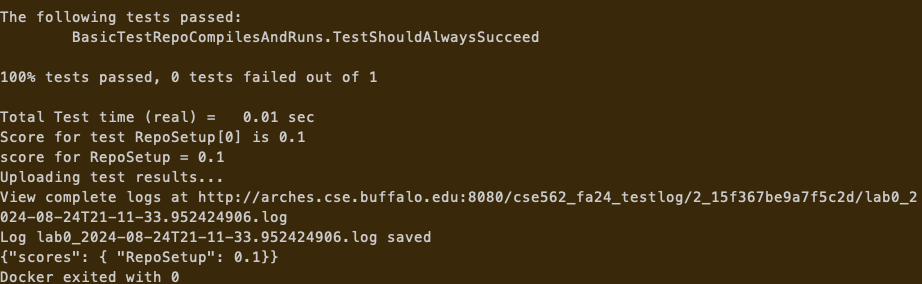
The second to last line shows the aggregated score for each
part of the project. You may find the total score for each part
of each project from UBLearns -- the Grades tab. For later projects,
to list the score of each test case, you may find the extended result (extres)
from the submit list-subs command:
(Listing submission history) To list all the past
submissions for a project, you may enter the
following.
For later projects, you should replace 0 with the
coresponding lab numbers.
submit list-subs 350099
The output will look like the following, in ascending submission timestamp order.

(Obtaining submission and testing result details) Each submission is also associated with a sequence number. You may obtain more detailed testing results using the following command:
submit list-sub-details <labno> <seqno>
At the end of the output, you'll also find a URL linking to the original testing log (UB VPN or campus network required).
4. Non-command-line (not recommended!) and alternative setups
(Non-command-line setups) We do not recommend use an IDE.
However, if you do insist, you may only use VSCode over SSH.
Please find here for rules,
suggestions and instructions: VSCode
Setup. Your repositories are pre-configured with some
VSCode settings to help you adhere to the rules.
(Alternative instructions for setting up environment locally) If you really want to set up the dev environment on anywhere else other than minsky (e.g., you have unstable connection to minsky), please refer to the following commented instructions. However, we cannot guarantee that the testing results will be the same as your local environment due to the differences of machine configuration. Make sure to fully test your code in your dev container on minsky for each project.
If you prefer setting up the build environment locally, your
system must have an x86_64 CPU and a reasonably recent Linux
installed. Here's the list of required tools and external
libraries (note: our CMakeLists.txt relies on the availability
of pc files on your PKG_CONFIG_PATH).
- bash, sed, awk, grep, python3
- pkg-config 0.29.2 or above
- gcc and g++ > 7
- cmake >= 3.22
- jemalloc 5.2.1 (also available as
libjemalloc-devon Ubuntu) - Abseil 20240722.0 (install enabled, build shared)
- GoogleTest 1.11.0 (install enabled, build shared)
Here's a script for
building Abseil and GoogleTest. If you do not want to install
them into the default location at /usr/local,
please replace the installation prefix on line 3. You may pass
-DCMAKE_PREFIX_PATH=the-install-prefix-path to
cmake to allow it find the libraries.
Note: please do not install libgtest-dev
via apt on Ubuntu. It is not a shared-lib build
that we need.